io.github.emirmrkaljevic/iotaudit
Audit your own smart-home devices: destinations, encryption, open ports, A-F grade.
iotaudit


Is your smart pet feeder, camera or plug safe? iotaudit watches what your own IoT devices
do on the network and gives each one an A–F grade with a one-page HTML report. Everything
runs locally: no account, no telemetry, no cloud.
It answers the questions you actually have about a cheap smart device:
- Who does it talk to? Domains (DNS + TLS SNI + HTTP Host), IPs, country, organisation.
- Is it encrypted? Plaintext HTTP, unencrypted TCP, old TLS, or "custom" high-entropy protocols.
- What ports are open? Optional
nmapscan with risk notes (telnet, RTSP, UPnP, ADB, …). - Does it phone home while idle? Idle-upload check and a traffic timeline with bursts.
- Where did the video go? LAN peer (phone P2P) vs cloud vs STUN/TURN — and an honest note when a stream was set up but never actually passed through your computer.
Status: 0.1.2. Hotspot + ARP capture, pcap and PCAPdroid analysis, IPv6/NDP, device-type identification, grading, HTML report, a local web UI and the MCP server work. CVE lookup and UPnP checks are on the roadmap.
Sample report
A report for a Tuya-associated pet feeder (anonymized). It talks to US clouds over TLS/MQTT, keeps telnet open, uses hardcoded 8.8.8.8, sets up a P2P video session that was not observed on this run, and shows an odd special-use "LAN peer" that is not a real device:
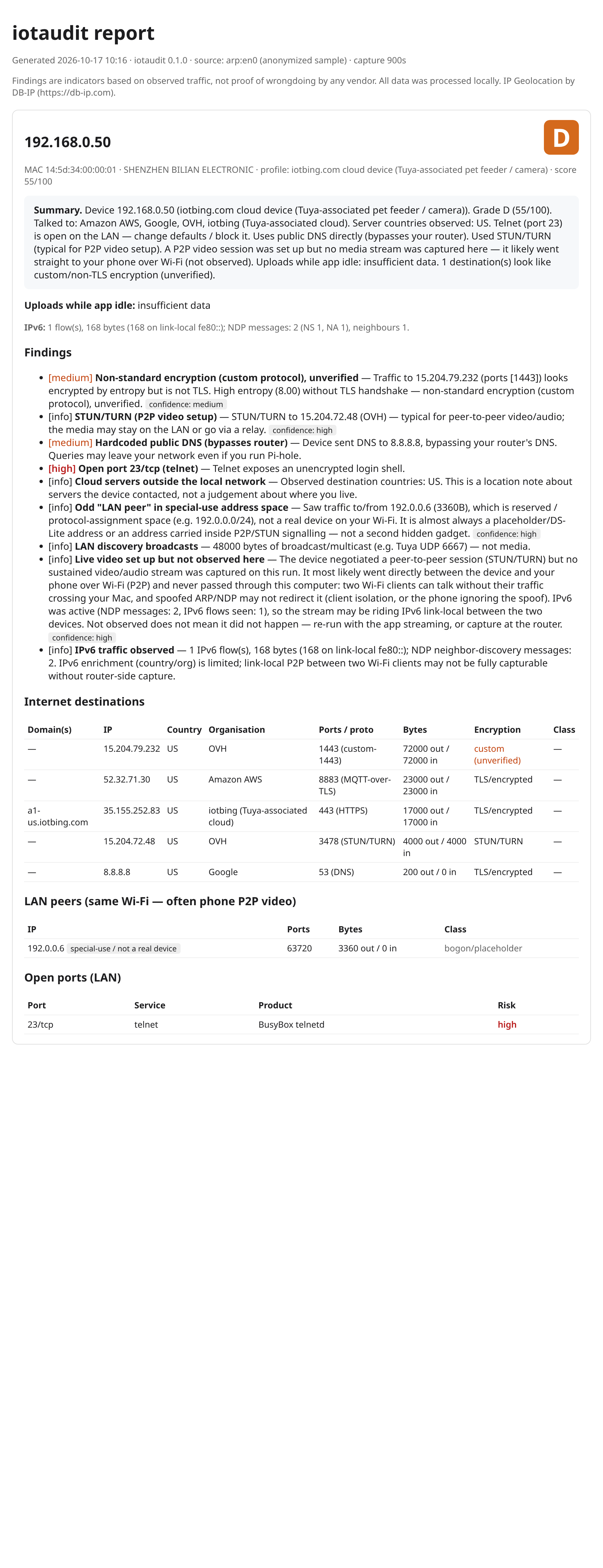
Open docs/sample-report.html in a browser for the full version.
Install
pipx install iotaudit
# or with the MCP server extra:
pip install "iotaudit[mcp]"
# latest from source:
pipx install "git+https://github.com/emirmrkaljevic/iotaudit"
Capturing needs root (sudo). The optional port scan needs nmap.
Quickstart
macOS
brew install nmap
pipx install iotaudit

# Just run it: pick your device from the list, then leave it alone (or use its app).
sudo "$(which iotaudit)" capture --mode arp --i-own-this-network
iotaudit scans your LAN, lists devices (IP, MAC, vendor; Tuya/Espressif flagged as likely IoT),
and lets you pick one. It then ARP-spoofs only that device so its traffic flows through your
Mac, captures for up to an hour (Ctrl+C stops early and still writes the report), and restores the
ARP tables and IP-forwarding on exit. With a device picked, --watch-lan (phone P2P) and the
IPv6/NDP filter are on by default.
Linux
sudo apt install nmap
pipx install iotaudit

# Same ARP flow as macOS:
sudo "$(which iotaudit)" capture --mode arp --i-own-this-network

# Or hotspot mode: your laptop becomes an AP; re-pair the device to it (needs NetworkManager).
sudo iotaudit capture --mode hotspot --iface wlan0 --ssid iotaudit --password 'choose-a-pass' \
     --device 10.42.0.50 --scan --out feeder.html
Analyse an existing capture
# from Wireshark, your router, or OpenWrt `tcpdump -w`
iotaudit analyze capture.pcap --device 192.168.1.50 --json results.json --out report.html
The report lands at ./iotaudit-report.html with a matching .json next to it.
IPv6, P2P video, and "not observed"
Live video from a camera or feeder often does not go to the cloud — it goes directly to your
phone over the local Wi-Fi (P2P), after a short STUN/TURN handshake. iotaudit tries hard to see
that stream (--watch-lan spoofs device↔phone, and the capture filter now includes IPv6 and NDP),
but two Wi-Fi clients can talk without their traffic ever passing through your computer —
because of Access-Point client isolation, a phone ignoring the spoof, or the stream riding IPv6
link-local (fe80::). When that happens the report says so honestly:
Live video set up but not observed here — the session was negotiated (STUN) but no sustained stream was captured; it most likely went straight to your phone. Not observed ≠ not happening.
For ground truth, capture at the router instead. --ipv6-ndp (experimental) also NDP-spoofs IPv6
link-local pairs.
Web UI and phones
iotaudit web                          # http://127.0.0.1:8765, token printed on start
sudo "$(which iotaudit)" web --lan    # also from a phone on the same Wi-Fi (token required)
View reports, upload a pcap (including PCAPdroid captures from Android) and run a one-click
scan & capture from the browser. Localhost by default; --lan is opt-in, token-protected and only
answers private-range clients. iPhones can use the web UI but cannot capture on their own; see
docs/phones.md for what works on Android and iOS and what does not.
MCP server
iotaudit-mcp # exposes audit tools to a local assistant ("audit my pet feeder")
Consent & scope
iotaudit only audits your own network. It refuses non-private targets and requires
--i-own-this-network (or an interactive I OWN THIS NETWORK confirmation). ARP/NDP spoofing on a
network you do not own may be illegal.
Findings are indicators based on observed traffic, not proof of wrongdoing by any vendor. IP geolocation by DB-IP. MIT licensed.
Installation
Source-derived launch command. Check the maintainer’s required arguments and credentials before running:
uvx iotauditSet up in your AI client
Merge this template into ~/Library/Application Support/Claude/claude_desktop_config.json. Keep existing servers. Add any arguments, credentials, and permissions required by the maintainer; this template has not been install-tested.
{
  "mcpServers": {
    "io-github-emirmrkaljevic-iotaudit": {
      "command": "uvx",
      "args": [
        "iotaudit"
      ]
    }
  }
}
Restart Claude Desktop completely for changes to take effect. Confirm the server appears connected in the client’s tool list, then try a read-only example from its documentation.
Claude Desktop setup referencePackage
iotauditpypiCompatible MCP Clients
io.github.emirmrkaljevic/iotaudit works with any MCP-compatible client. Copy the config snippet from the Configuration section above and add it to the file shown for your client, then restart the application.
- Claude Desktop
~/Library/Application Support/Claude/claude_desktop_config.jsonRestart Claude Desktop completely for changes to take effect. - Cursor
~/.cursor/mcp.jsonRestart Cursor for changes to take effect. - VS Code
.vscode/mcp.jsonReload VS Code window for changes to take effect. - Windsurf
~/.codeium/windsurf/mcp_config.jsonRestart Windsurf for changes to take effect. - Claude Code
.mcp.jsonSave at the project root, then start Claude Code in that project and review the MCP server approval prompt. Keep real credentials out of shared files.