Imagor MCP
An MCP server and a skill for imagor, compiling agent-written image layouts into one URL.
imagor-mcp
An MCP server and a skill that add template capability to imagor.
An agent writes a layout; the layout compiles to one imagor URL — pasted in a browser, stored, served from a CDN, put in a page.
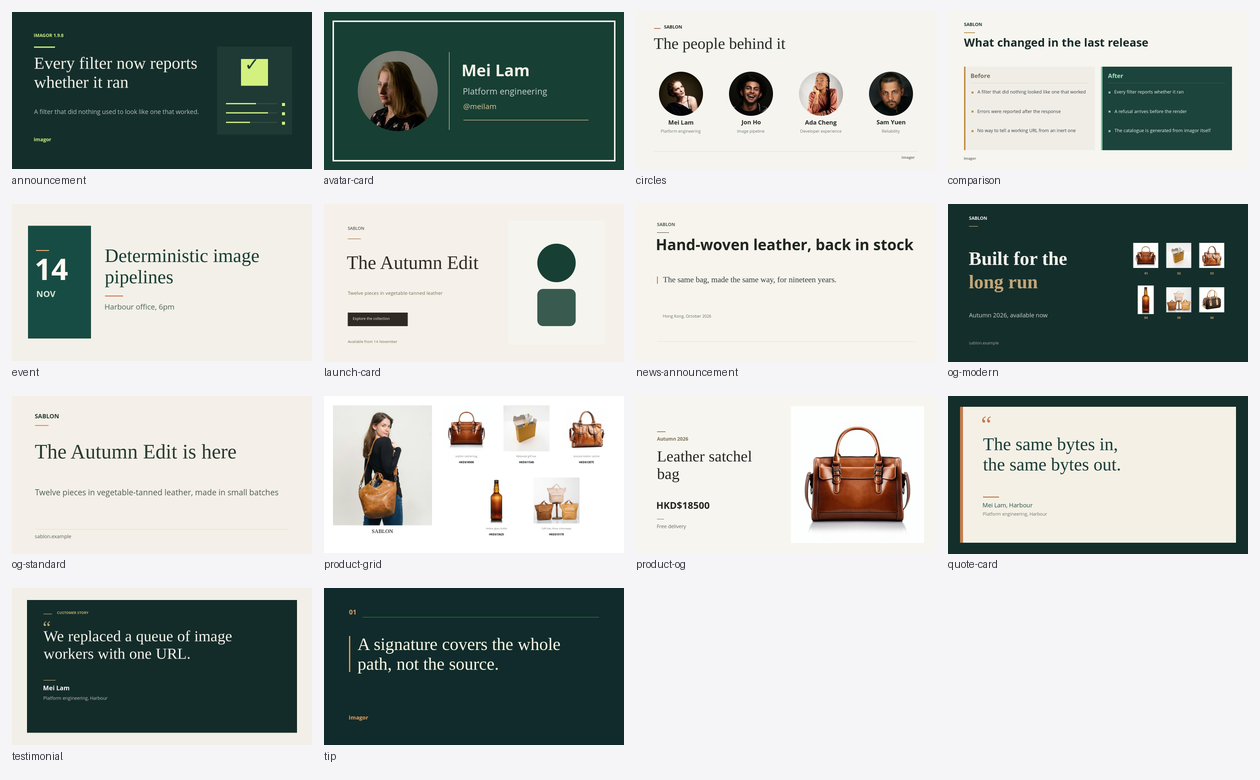
Every card above is one imagor URL, composed by an agent from a brief. All fourteen, with the URL each resolves to, and a prompt to ask for it »
What an agent does with it
Ask for a card and it builds one:
Build a 1200×630 launch card: a deep green ground, a serif headline, a product photo on the right, and the price below it. Show me what it looks like.
It writes the template, renders it, looks at the image, and revises. Given a brief with no layout, no positions and no sizes, an agent designed three distinct banners across three runs — hierarchy, colour, type pairing, invented copy — and zoomed into regions to read the small text it had drawn.
That is the difference from editor-first image tooling: there is no canvas to design in. A layout is a URL, and a URL is something an agent can write, check and rewrite.
What this adds
imagor-mcp adds a template layer to imagor. Rendering stays in the imagor instance you run, at the throughput it already has.
A layout compiles to a URL; a hosted template API returns an image. Those bill and transfer the bytes on every render. imagor serves a URL instead, which any browser, proxy or CDN can cache — so the bytes are transferred once.
Quick start
1. Run an imagor.
docker run -d --rm -p 8000:8000 -e IMAGOR_UNSAFE=1 shumc/imagor
Unsafe is the local mode — URLs carry no signature, so one you edit by hand still renders, and nothing has to match between the two sides.
2. Run the server.
docker run -i --rm -e IMAGOR_UNSAFE=1 -e IMAGOR_BASE_URL=http://host.docker.internal:8000 \
  ghcr.io/cshum/imagor-mcp
The container carries the skill with it and needs nothing installed. host.docker.internal is
how a container reaches the imagor on the host. On Linux, add
--add-host=host.docker.internal:host-gateway.
3. Point a client at it.
{
  "mcpServers": {
    "imagor": {
      "command": "docker",
      "args": ["run", "-i", "--rm",
               "-e", "IMAGOR_UNSAFE=1",
               "-e", "IMAGOR_BASE_URL=http://host.docker.internal:8000",
               "ghcr.io/cshum/imagor-mcp"]
    }
  }
}
In VS Code and Copilot, this writes that entry for you:
vscode:mcp/install?%7B%22name%22%3A%22imagor%22%2C%22command%22%3A%22docker%22%2C%22args%22%3A%5B%22run%22%2C%22-i%22%2C%22--rm%22%2C%22-e%22%2C%22IMAGOR_UNSAFE%3D1%22%2C%22-e%22%2C%22IMAGOR_BASE_URL%3Dhttp%3A%2F%2Fhost.docker.internal%3A8000%22%2C%22ghcr.io%2Fcshum%2Fimagor-mcp%22%5D%7D
The server speaks MCP over stdio, so nothing listens on a port.
4. Ask it for something. One of the fourteen recipes in cookbook/, or describe what you
want and let it compose.
Published as io.github.cshum/imagor-mcp in the
official MCP Registry, where a client can install
it by name, and on Smithery. Hosts that
take a bundle can open
imagor-mcp.mcpb
instead — it runs outside a container, so its base URL is plain localhost:8000. Every
platform's binary is on the releases page.
Before anything is public, move both sides to IMAGOR_SECRET — see
Configuration.
Tools
Eleven tools, each mapping onto a concept in the imagor path grammar. The list, and what each is for, is in docs/tools.md.
The cookbook
cookbook/ holds fourteen ready-made layouts — OG cards, a product grid, a profile
card, quotes, testimonials, an event, a comparison table, a price ladder. Take the
closest, change the values, render it.
Every card, and the path it resolves to » The template is not on that page: a recipe is the channel between an agent and the renderer, so it travels in the server and arrives by name.
Every recipe renders at three canvas sizes on every commit, and the contact sheet above comes from that same code path — so it cannot drift.
Configuration
A mode is required, and exactly one applies — selected by the environment, with no implicit fallback. Setting both is refused at startup, and so is setting neither: they state opposite intentions, and silently picking one is how an unsigned deployment reaches production.
| Variable | Meaning |
|---|---|
IMAGOR_SECRET | Signing secret. Selects signed mode: <signature>/<path>. |
IMAGOR_UNSAFE | 1, true, yes or on. Selects unsafe mode: unsafe/<path>, development only. Must be explicit. |
IMAGOR_BASE_URL | Your imagor origin. Needed for verify_imagor_url, and it adds absolute_url to output. |
IMAGOR_SIGNER_TYPE | sha1 (default), sha256 or sha512. |
IMAGOR_SIGNER_TRUNCATE | Signature length in characters. 0 means none. |
IMAGOR_MCP_EXTRA_FILTERS | Extra filter names for forks that register their own. |
The signer settings must match your imagor exactly, or it rejects the URLs.
IMAGOR_BASE_URL has to be reachable from inside the imagor container — the
preview fetches the render back through it to scale it down.
Making previews faster
verify_imagor_url fetches through imagor's preview() filter, which skips result
storage and opts into the in-memory cache. Turn the cache on and repeated looks
at the same composition get much cheaper — measured on a 1600×600 composition,
386 ms for the first preview and 25 ms for a repeat:
VIPS_CACHE_SIZE=52428800      # byte budget; 0 disables the cache (default)
VIPS_CACHE_MAX_WIDTH=2400     # images larger than this are not cached
VIPS_CACHE_MAX_HEIGHT=2000
Going deeper
The format, and the conventions an agent needs to compose well:
- docs/format.md — a template carries no canvas size, and why a path cannot be read back into a template.
- docs/tools.md — the eleven tools the server serves.
- docs/skill.md — the skill the server carries, and what it covers.
- docs/security.md — what it is trusted with, and what it refuses.
- docs/development.md — building, testing, and the CLI.
Licence
MIT.
Setup from the maintainer
This listing does not have a supported local package template. Use the maintainer’s documentation for its hosted endpoint, authentication, and client-specific setup. No install command has been inferred.
Package
https://github.com/cshum/imagor-mcp/releases/download/v0.7.9/imagor-mcp-v0.7.9.mcpbotherCompatible MCP Clients
Imagor MCP works with any MCP-compatible client. Copy the config snippet from the Configuration section above and add it to the file shown for your client, then restart the application.
- Claude Desktop
~/Library/Application Support/Claude/claude_desktop_config.jsonRestart Claude Desktop completely for changes to take effect. - Cursor
~/.cursor/mcp.jsonRestart Cursor for changes to take effect. - VS Code
.vscode/mcp.jsonReload VS Code window for changes to take effect. - Windsurf
~/.codeium/windsurf/mcp_config.jsonRestart Windsurf for changes to take effect. - Claude Code
.mcp.jsonSave at the project root, then start Claude Code in that project and review the MCP server approval prompt. Keep real credentials out of shared files.