McpOrchestrator
Route one agent through one MCP server to many, with progressive tool discovery to shrink context.
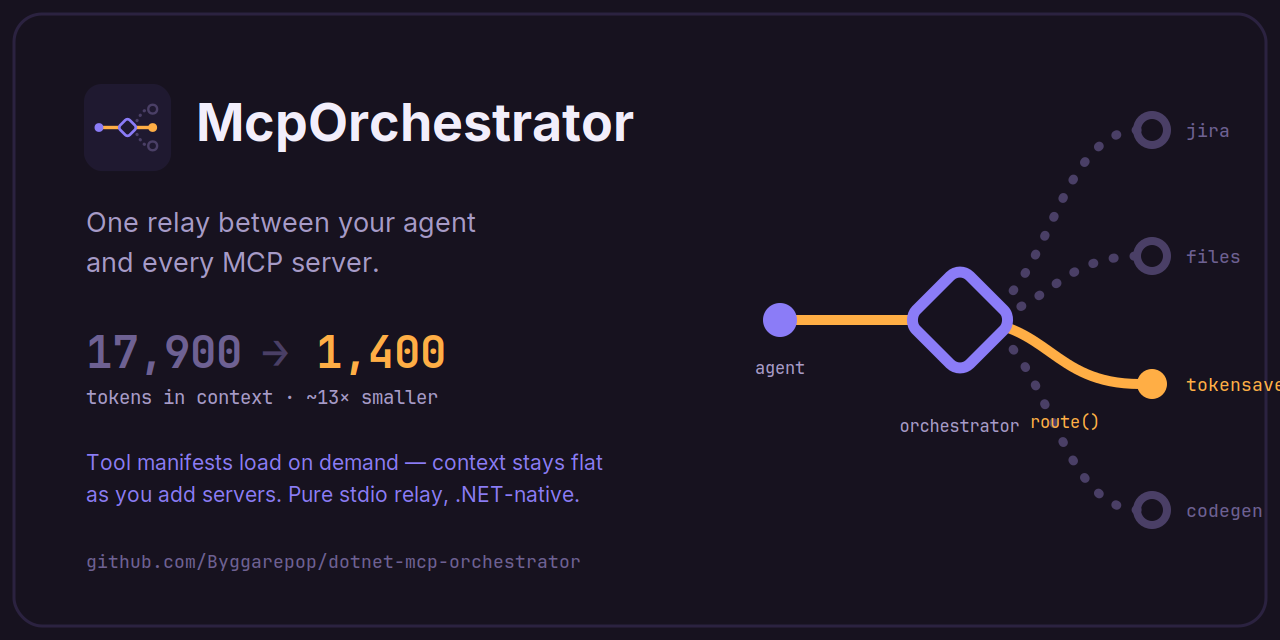
McpOrchestrator — a .NET-native MCP orchestrator



Every MCP server you connect costs context before the agent does anything — its tool manifests sit in the prompt on every turn. McpOrchestrator puts one server between your agent and all the others and loads downstream tool manifests on demand, so the agent's always-on context stays flat no matter how many servers you add. The agent sees three meta-tools — list_capabilities → discover_tools → route — and the orchestrator is a pure relay: it forwards exactly what the agent sends, never interpreting it. It can also serve Agent Skills with the same on-demand discipline.
See it in 70 seconds
https://github.com/user-attachments/assets/741c1afa-4bef-4870-9b84-e2c245b8117e
Measured impact
Against a real workplace MCP setup, measured with the Copilot CLI's /usage:
| Tokens in context | |
|---|---|
| MCP connected directly (manifests loaded upfront) | 17,900 |
| Same MCP behind McpOrchestrator | 1,400 |
| Reduction | ~13x |
The savings scale with the number of servers. Measure your own setup first — one command, nothing installed, not a single file changed (needs the .NET SDK):
cd ~/my-project          # a folder with a .mcp.json / .vscode/mcp.json / Cursor config
dotnet tool execute McpOrchestrator profile
Quick start
From an existing MCP setup, cd to the folder holding your host config (.mcp.json, .vscode/mcp.json, or a Cursor config) and run:
dotnet tool execute McpOrchestrator --yes init # dnx McpOrchestrator --yes init works too
It lifts your stdio servers into a generated orchestrator.config.json, backs up the host config, and rewrites it to launch only the orchestrator. The generated catalog looks like this — one entry per downstream server:
{
  "capabilities": [
    {
      "name": "files",
      "summary": "Read and search files under the project root.", // auto-generated
      "transport": "stdio",
      "command": "npx",
      "args": ["-y", "@modelcontextprotocol/server-filesystem", "C:/projects"]
    }
    // …one entry per server init found
  ]
}
The summary line is what the agent routes on — refine any that read poorly. Restart your MCP host and you're done: the agent discovers everything on its own through list_capabilities → discover_tools → route, and every later edit to this file hot-reloads without a restart.
Add a skill
A skill is a folder with a SKILL.md — instructions the agent discovers and follows by itself when a task matches. Create one:
my-skills/
└── release-notes/
    └── SKILL.md
---
name: release-notes
description: Writes user-facing release notes from a git commit range. Use when asked for release notes or a changelog entry.
---

1. Collect the commits since the last release tag.
2. Group by user impact; drop internal-only changes.
3. One sentence per change, present tense.
Point the orchestrator at the folder in orchestrator.config.json:
"skills": {
  "sources": [{ "id": "local", "type": "directory", "path": "C:/my-skills" }]
}
Save — it hot-reloads. The agent now sees the skill's name + one-line description via list_skills and loads the full instructions only when a task calls for it. Skills can also come from a shared git repo or an HTTP index, with allow/deny lists and integrity pinning — see docs/skills.md.
Note: these skills are for the agent only — the model discovers and follows them through tools. They do not become host-native skills (no
/skillslisting or slash command in Claude Code, no IDE skill picker entry).
Documentation
Everything else lives in McpOrchestrator/README.md and docs/:
- How it works & the three tools — architecture and token scaling
- Profiling token economics — the
profilecommand in depth, trace mode, CI gating - CLI reference — every command and flag: the server,
init, andprofile, plus all environment variables - Manual setup — the two config files
initgenerates, written by hand - Configuration reference — every field, placeholders, proactive capabilities, hot reload, central (team) configuration
- Agent Skills — sources (directory/git/HTTP), governance, delivery modes, how it works
- Packaging & Native AOT — install as a .NET tool or a self-contained binary from Releases
- How it compares — vs. mcp-aggregator and gateways, and when not to use this
- Troubleshooting
License
Setup from the maintainer
This listing does not have a supported local package template. Use the maintainer’s documentation for its hosted endpoint, authentication, and client-specific setup. No install command has been inferred.
Package
Compatible MCP Clients
McpOrchestrator works with any MCP-compatible client. Copy the config snippet from the Configuration section above and add it to the file shown for your client, then restart the application.
- Claude Desktop
~/Library/Application Support/Claude/claude_desktop_config.jsonRestart Claude Desktop completely for changes to take effect. - Cursor
~/.cursor/mcp.jsonRestart Cursor for changes to take effect. - VS Code
.vscode/mcp.jsonReload VS Code window for changes to take effect. - Windsurf
~/.codeium/windsurf/mcp_config.jsonRestart Windsurf for changes to take effect. - Claude Code
.mcp.jsonSave at the project root, then start Claude Code in that project and review the MCP server approval prompt. Keep real credentials out of shared files.